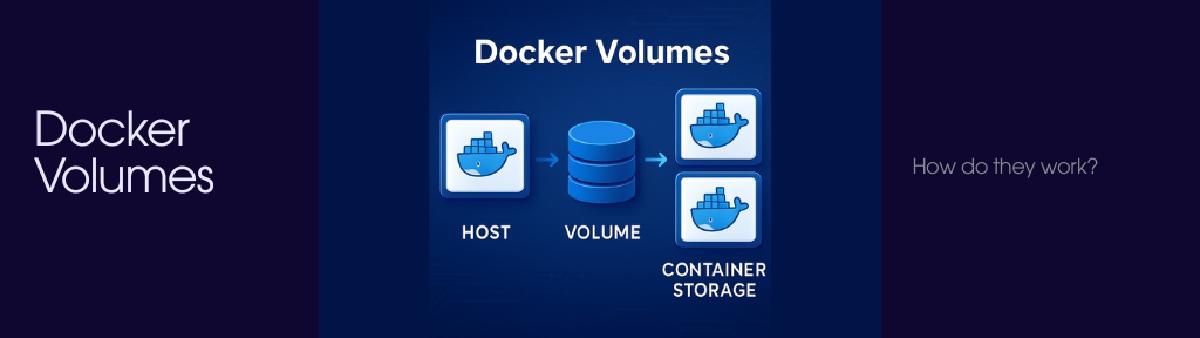

This lessons focuses on the different types of docker volumes and their behaviors along with some gotchas
Reference: https://docs.docker.com/engine/storage/volumes/
What is docker volumes?#
So we have docker volumes to persist data between and away from containers, meaning if our container is pruned or deleted the data within it is not deleted along with the container.
But also we use it to pass in our data into the container, maybe config files or media files etc.
Creation:#
- Automatic
docker volume create
Usage:  docker volume COMMAND

Manage volumes

Commands:
  create      Create a volume
  inspect     Display detailed information on one or more volumes
  ls          List volumes
  prune       Remove all unused local volumes
  rm          Remove one or more volumes
Docker volumes are managed by docker.
Why/When use volumes?#
- Volumes are easier to back up or migrate than bind mounts.
- You can manage volumes using Docker CLI commands or the Docker API.
- Volumes work on both Linux and Windows containers.
- Volumes can be more safely shared among multiple containers.
- New volumes can have their content pre-populated by a container or build.
- When your application requires high-performance I/O.
General Behavior#
Do this
- Use volumes to store data, they are faster and do not increase container size.
Don’t do this
- Don’t write data directly inside the container filesystem, it slows performance and increases container size due to the storage driver and union filesystem.
Basically, writing changes to a volume is faster then writing changes to a file inside the container
Single volume can be mounted on multiple containers ie sharing the same volume writing and all
• If a non-empty volume is mounted to a container path, the volume files are shown and any existing container files at that path are hidden.
• If an empty volume is mounted to a container path that already contains files, Docker copies the container files into the volume, and then mounts it.
• Copying occurs only when the volume is empty. If the volume is not empty, Docker performs masking, not copying.
• If a non-empty volume is mounted to a non-existent container path, Docker creates the path and the volume contents appear inside the container.
| Volume state | Container path exists? | Container path has files? | What you see in container | What happens internally |
|---|---|---|---|---|
| Empty volume (new or existing) | Yes | Yes | Container files visible | Docker copies container files into the volume, then mounts it |
| Empty volume | Yes | No (empty dir) | Empty directory | Nothing to copy |
| Empty volume | No | N/A | Empty directory | Docker creates the path |
| Non-empty volume | Yes | Yes | Volume files visible | Container files are masked/hidden |
| Non-empty volume | Yes | No | Volume files visible | Normal mount |
| Non-empty volume | No | N/A | Volume files visible | Docker creates path and mounts |
| Empty volume → initialize from container. | ||||
| Non-empty volume → override container. |
Types of Docker Volumes#
1. Named volumes:#
(if name not provided then anonymous volumes)
--rm can be used to supersede the default behavior of maintaining a container after a docker run. It will remove the volume once container is deleted
docker run --mount type=volume,src=<volume-name>,dst=<mount-path>
docker run --volume <volume-name>:<mount-path>
Options for Volume:
docker run -v [<volume-name>:]<mount-path>[:opts]Example:
docker run -it -v config_vol:/etc/myconfig:ro ubuntuThis runs an ubuntu image in an interactive shell that mounts a named volume at the /etc/myconfig directory in the container.
ro - is read only, so the files inside the container cannot be overwritten but file at the volume location can
The folder is created if it doesnt exists already
2. Bind Mounts#
A bind mount mounts a file or directory from the host machine into a container. Unlike volumes, Docker does not manage the data, changes are reflected directly on the host.
When to use#
Share source code or build artifacts between host and container.
Persist files created in a container to the host filesystem.
Share configuration files like
/etc/resolv.conf.Bind mounts can also be used during builds to test, lint, or compile code.
Behavior#
Mounting over an existing container directory hides existing contents.
Containers are tightly coupled to the host’s directory structure.
Default access is read-write, but can be made read-only (
:roor:readonly).On Docker Desktop, bind mounts are translated to the VM filesystem if using Linux containers.
Syntax#
Using --mount (preferred)#
docker run --mount type=bind,source=<host-path>,target=<container-path>[,ro,bp-option]source/src: host pathtarget/dst: container pathro: read-onlybind-propagation:rprivate,rshared, etc.
Example:
docker run -d -it --name devtest --mount type=bind,source="$(pwd)"/target,target=/app,readonly nginx:latestUsing -v or --volume#
docker run -v <host-path>:<container-path>[:opts] <image>Example:
docker run -d -it --name devtest -v "$(pwd)"/target:/app:ro,rshared nginx:latestNotes#
Verify mount with
docker inspect devtest→ checkMountssection.Stop and remove container if needed:
docker container rm -fv devtestBe careful binding into non-empty container directories—it may break the container if critical paths are replaced.
Use
readonlymounts to prevent accidental host changes.
3. tmpfs mounts#
What are tmpfs mounts#
Tmpfs mounts let containers create temporary files outside their writable layer.
Unlike volumes or bind mounts, data is stored in host memory, not persisted to disk.
Data is removed when the container stops.
Best for temporary data for performance or security reasons.
Important Points#
Tmpfs maps directly to Linux kernel tmpfs; data may swap to disk.
Mounting over existing container files hides them; recreating the container is needed to restore.
Limitations:
Cannot share tmpfs between containers.
Only works on Linux.
Permissions may reset after restart;
uid/gidcan help.
Docker Syntax#
–tmpfs flag (simpler, flexible):
docker run --tmpfs <container-path>[:options]–mount flag (more explicit, preferred):
docker run --mount type=tmpfs,dst=<container-path>[,key=value...]Options for –tmpfs#
ro/rw– read-only / read-writenosuid/suid– setuid/setgid enforcementnodev/dev– device files behaviorexec/noexec– executable binariessync/async– synchronous/asynchronous I/Osize– mount size (e.g.,size=64m)mode– file permissionsuid/gid– owner of mountnr_inodes/nr_blocks– limits
Example:
docker run --tmpfs /data:noexec,size=1024,mode=1777Options for –mount#
type=tmpfs– defines tmpfs mountdst/destination/target– container pathtmpfs-size– size in bytestmpfs-mode– file mode (octal)
Example:
docker run --mount type=tmpfs,dst=/app,tmpfs-size=21474836480,tmpfs-mode=1770Usage Example#
–mount version:
docker run -d -it --name tmptest --mount type=tmpfs,destination=/app nginx:latest–tmpfs version:
docker run -d -it --name tmptest --tmpfs /app nginx:latestVerify mount:
docker inspect tmptest --format '{{ json .Mounts }}'Stop & remove:
docker stop tmptest
docker rm tmptest
Volumes vs Bind Mounts#
| Feature | Volume | Bind Mount |
|---|---|---|
| Storage location | Managed by Docker in /var/lib/docker/volumes/ | Any path on the host filesystem |
| Lifecycle | Independent of container; can be shared across containers; persists after container removal | Tied to host path; persists independently, but must manage paths manually |
| Use case | Best for persistent app data, databases, or sharing between containers | Best for development, accessing existing host files, or config files |
| Setup | Simple: docker volume create my-vol then --mount source=my-vol,dst=/app | Needs full host path: --mount type=bind,source=/host/path,dst=/app |
| Portability | More portable; Docker manages the storage | Less portable; depends on host path structure |
| Backup / Restore | Easier to backup using docker run --rm -v my-vol:/data ... | Backup requires host-level file operations |
| Performance | Docker-managed; may be slightly slower on non-Linux systems | Directly uses host filesystem; can be faster for local dev |
| Security | Isolated from host; safer for sensitive data | Full access to host path; more security risk if misused |
Summary for Different mounting options#
| Volume Type | Use Case / When to Use | Speed | Managed By Docker | Notes / Features |
|---|---|---|---|---|
| Named Volumes | Persisting container data (databases, logs) across container restarts | Fast (on host filesystem) | ✅ Yes | Docker manages location; easy backup/restore; portable across hosts if using volume plugins |
| Anonymous Volumes | Temporary persistent data when you don’t need a specific name | Fast | ✅ Yes | Auto-created and removed with container unless manually retained |
| Bind Mounts | Accessing host files, development, sharing config/data between host and container | Fast (direct host FS access) | ❌ No | Direct access to host filesystem; flexible; less portable; permissions may cause issues |
| tmpfs Mounts | Non-persistent sensitive data, caching, high-speed temp storage | Very fast (in-memory) | ❌ No | Stored in host RAM; cleared on container stop; Linux-only; cannot share across containers |
| Volume Plugins | Cloud storage, distributed volumes, special filesystems (NFS, EFS, etc.) | Depends on plugin | ✅ Yes | Extends Docker volume capabilities; allows cross-host sharing; may have network latency |
tmpfs → fastest, ephemeral, in-memory.
Bind mounts → fast, host-dependent, for dev or direct host access.
Named volumes → balanced, persistent, Docker-managed.
Anonymous volumes → temporary persistence.
Volume plugins → networked or special storage solutions.
Commands with volumes#
Basic volume commands
Create:
docker volume create my-volList:
docker volume lsInspect:
docker volume inspect my-volRemove:
docker volume rm my-vol
Using a volume with a container
If a volume does not exist, Docker creates it automatically.
Example:
docker run -d --name devtest -v myvol2:/app nginx:latest-vand--mountachieve the same result.Volumes are mounted read-write by default.
Inspecting volume usage
docker inspect <container>shows:Type: volume
Source:
/var/lib/docker/volumes/<name>/_dataDestination: container path
Removing volumes
Stop and remove the container first.
Volume removal is a separate step:
docker volume rm <volume-name>
Volumes with Docker Compose
Volumes are created automatically on first
docker compose up.Example:
services:
  frontend:
    image: node:lts
    volumes:
      - myapp:/home/node/app
volumes:
  myapp:
- Reused across subsequent runs.
Using external volumes in Compose
Pre-create the volume:
docker volume create myappReference it as external:
volumes:
  myapp:
external: true- Remove anonymous volume:
docker run --rm -v /foo -v awesome:/bar busybox top
Runs the container with volume that is deleted upon container deletion
- Remove all unused volumes:
docker volume prune
Backup and Restoring#
Docker volumes are persistent and managed by Docker, which makes backing up and restoring relatively straightforward. You can use a temporary container to access the volume’s data.
1. Backup a Volume#
To back up a volume named my-vol to a tar file on the host:
docker run --rm \
  -v my-vol:/volume-data \
  -v $(pwd):/backup \
  alpine \
  tar czf /backup/my-vol-backup.tar.gz -C /volume-data .
Explanation:
--rm→ removes the temporary container after running.-v my-vol:/volume-data→ mounts the volume into the container.-v $(pwd):/backup→ mounts the current host directory to store the backup.tar czf ...→ compresses the volume data into a tar.gz file.
2. Restore a Volume#
To restore the backup into a volume (existing or new):
- Create the volume if it doesn’t exist:
docker volume create my-vol- Restore the backup:
docker run --rm \
  -v my-vol:/volume-data \
  -v $(pwd):/backup \
  alpine \
  sh -c "cd /volume-data && tar xzf /backup/my-vol-backup.tar.gz --strip 1"
Explanation:
--strip 1removes the top-level directory from the archive if present.This restores all files into the volume
my-vol.
Notes#
You can automate this with scripts for regular backups.
Make sure no container is writing to the volume during backup to avoid inconsistent data.
Volume Drivers#
Why storage (volume) drivers#
Allow Docker to use external storage systems instead of local disk
Enable network storage (NFS, CIFS, SFTP, cloud remotes)
Provide data persistence beyond a single host
Let Docker delegate mounting to the Linux kernel mount system
Support block devices and remote filesystems transparently
Types of volume drivers#
1. Local volume driver (default)#
Uses the host’s filesystem or kernel-supported mounts.
Example 1#
Type: Local + NFS
Command:
docker service create \ --mount 'type=volume,source=nfsvolume,target=/app,volume-driver=local,volume-opt=type=nfs,volume-opt=device=:/var/docker-nfs,volume-opt=o=addr=10.0.0.10' \ nginx`Optimal use case:
Shared storage across multiple containers or nodes
Centralized persistent data
Swarm or multi-host setups
Example 2#
Type: Local + CIFS (Samba)
Command:
docker volume create \ --driver local \ --opt type=cifs \ --opt device=//server/share \ --opt o=addr=server,username=user,password=pass \ --name cifs-volumeOptimal use case:
Windows file servers
NAS devices
Enterprise network shares
2. Plugin-based volume drivers#
Extend Docker to support remote or cloud-backed storage.
Example 3#
Type: rclone (SFTP)
Command:
docker volume create \ -d rclone \ --name rclonevolume \ -o type=sftp \ -o path=remote \ -o sftp-host=1.2.3.4 \ -o sftp-user=userOptimal use case:
Remote servers over SSH/SFTP
Secure off-host backups
Cloud storage integration
3. Block device volumes#
Mount raw disks or partitions directly into containers.
Example 4#
Type: Local + block device (ext4)
Command:
docker run \ --mount='type=volume,dst=/external-drive,volume-driver=local,volume-opt=device=/dev/loop5,volume-opt=type=ext4' \ ubuntuOptimal use case:
High-performance I/O
Direct disk access
Specialized storage workloads
Key notes (important)#
--mountis required when passing driver options-vdoes not support advanced volume optionsDocker forwards volume options directly to the Linux mount syscall
Volume plugins must be installed before use
Block device mounting requires host-level access